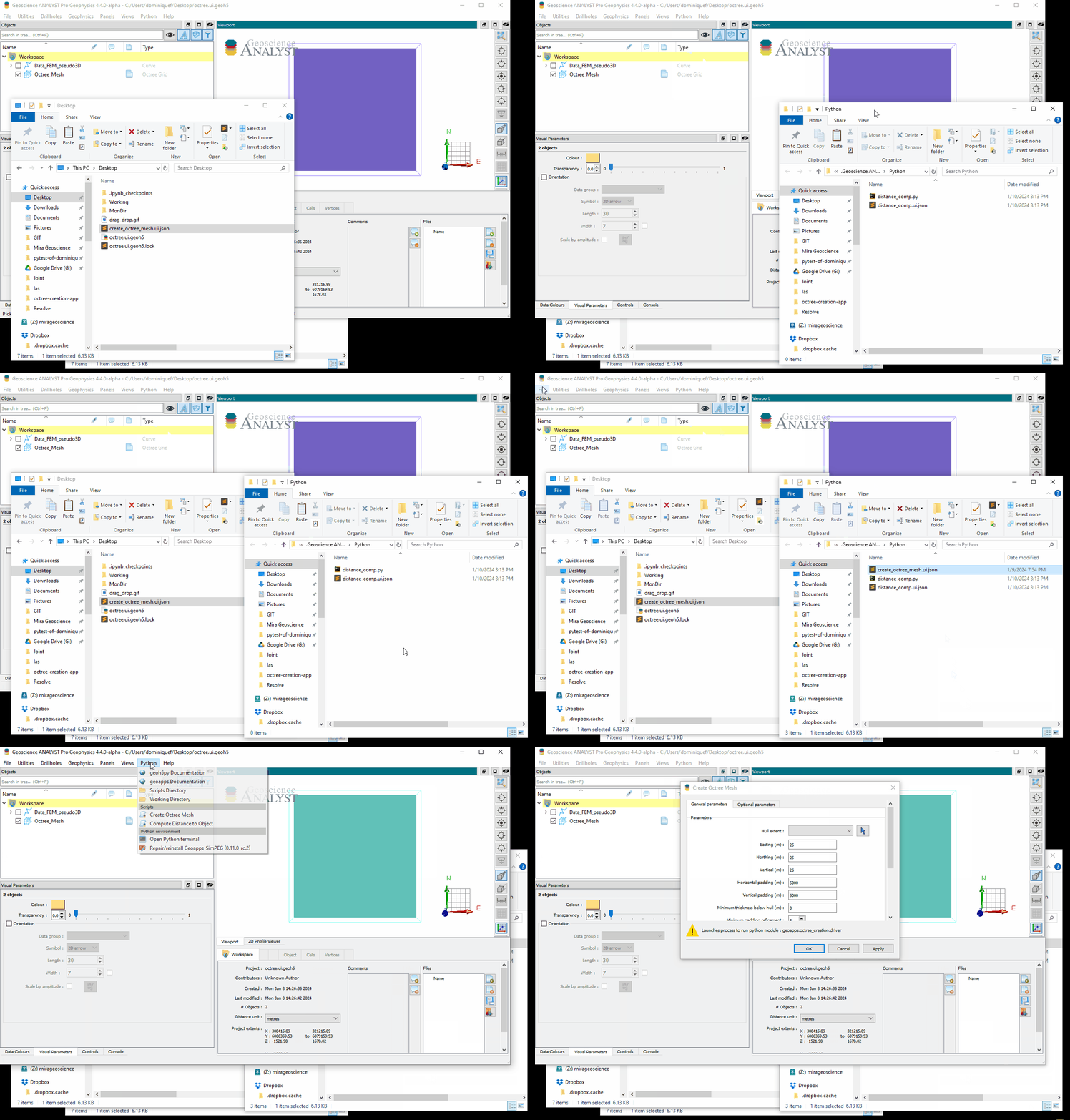
UI.JSON Format#
The ui.json format provides a schema to create a simple User Interface (UI) for a two-way connection between Geoscience ANALYST Pro and Python. The schema uses the JSON format to store the state of the UI and to pass those parameters to an accompanying Python script.
Usage#
A ui.json file contains customizable Forms that encodes UI elements rendered by Geoscience ANALYST. For example, the simple ui.json shown below describes a grid_object parameter, which is used to select a block model within a geoh5 file.
{
    "title":"My first UI",
    "run_command": "run_me",
    "conda_environment": "mirageo",
    "grid_object": {
        "meshType": ["{B020A277-90E2-4CD7-84D6-612EE3F25051}"],
        "main": true,
        "label": "Select Block Model",
        "value": ""
    }
}
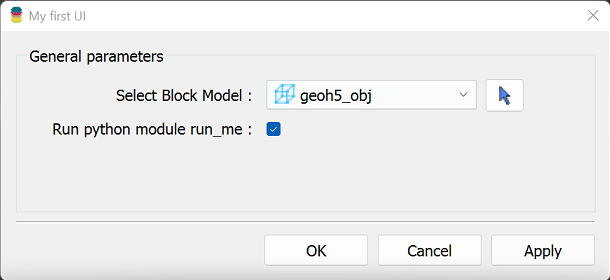
Fig. 2 See the Object form section for more details on this type of selection form.#
To be a valid file, the ui.json must contain at least the following fields:
- title
str Title of user interface window
- title
- run_command
str Name of Python script excluding the .py extension (i.e., “run_me” for run_me.py) required for Geoscience ANALYST Pro to run on save or auto-load.
- run_command
- conda_environment
str [Optional] Name of conda environment to activate when running the Python script in run_command. Note that the
mirageoconda environment is the default environment for Geoscience ANALYST Pro.
- conda_environment
Upon execution, the choices made by the users are saved to disk and provided as input parameters to an accompanying Python program.
Execution#
When a ui.json is run within Geoscience ANALYST Pro (either OK or Apply), the following steps occur:
The value and enabled fields of every form are updated to reflect the current state of the UI. For example, the value field of the
grid_objectis set to the selected objectUUID.A
ui.jsonfile is written to disk in a temporary directory, along with a geoh5 file containing all the objects within the parameters of the ui.json.ANALYST activates the specified conda_environment (if provided)
ANALYST executes the Python script specified in the run_command field of the ui.json file,
python -m run_me my_file.ui.json
If included in the Python script, the results can be written back to the monitored directory, which will update the objects in the geoh5 file and refresh the ANALYST Pro viewport.
The simple Python script below demonstrates how to access input values from the ui.json file and deliver results back to ANALYST Pro through the monitored directory.
import sys
from geoh5py import Workspace
from geoh5py.ui_json import UIJson
from geoh5py.ui_json.utils import monitored_directory_copy

def main(ui_file):

    # Read the file as pydantic class
    ifile = UIJson.read(ui_file)

    # Access the selection
    selector = ifile.grid_object
    print(f"Selected UUID: {selector.value}")

    with Workspace(ifile.geoh5) as workspace:
        # Convert to a dict with geoh5py entities
        my_inputs = ifile.to_params(workspace=workspace)

        # Change something
        my_inputs['grid_object'].name = "New name"

        # Send the result back to ANALYST
        monitored_directory_copy(ifile.monitoring_directory, my_inputs['grid_object'])


if __name__ == '__main__':
    ui_file = sys.argv[1]
    main(ui_file)
The UIJson class provides a convenient way to read and write the ui.json file, as well as access the parameters in a structured way. It leverages Pydantic to validate and serialize the forms and input values. The to_params method converts the UIJson object into a dictionary of geoh5py entities.
Rendering#
The user interface defined by the ui.json file can be opened in ANALYST Pro in two ways:
Drag and Drop: Simply drag the
ui.jsonfile into the viewport. The corresponding dialog will open immediately.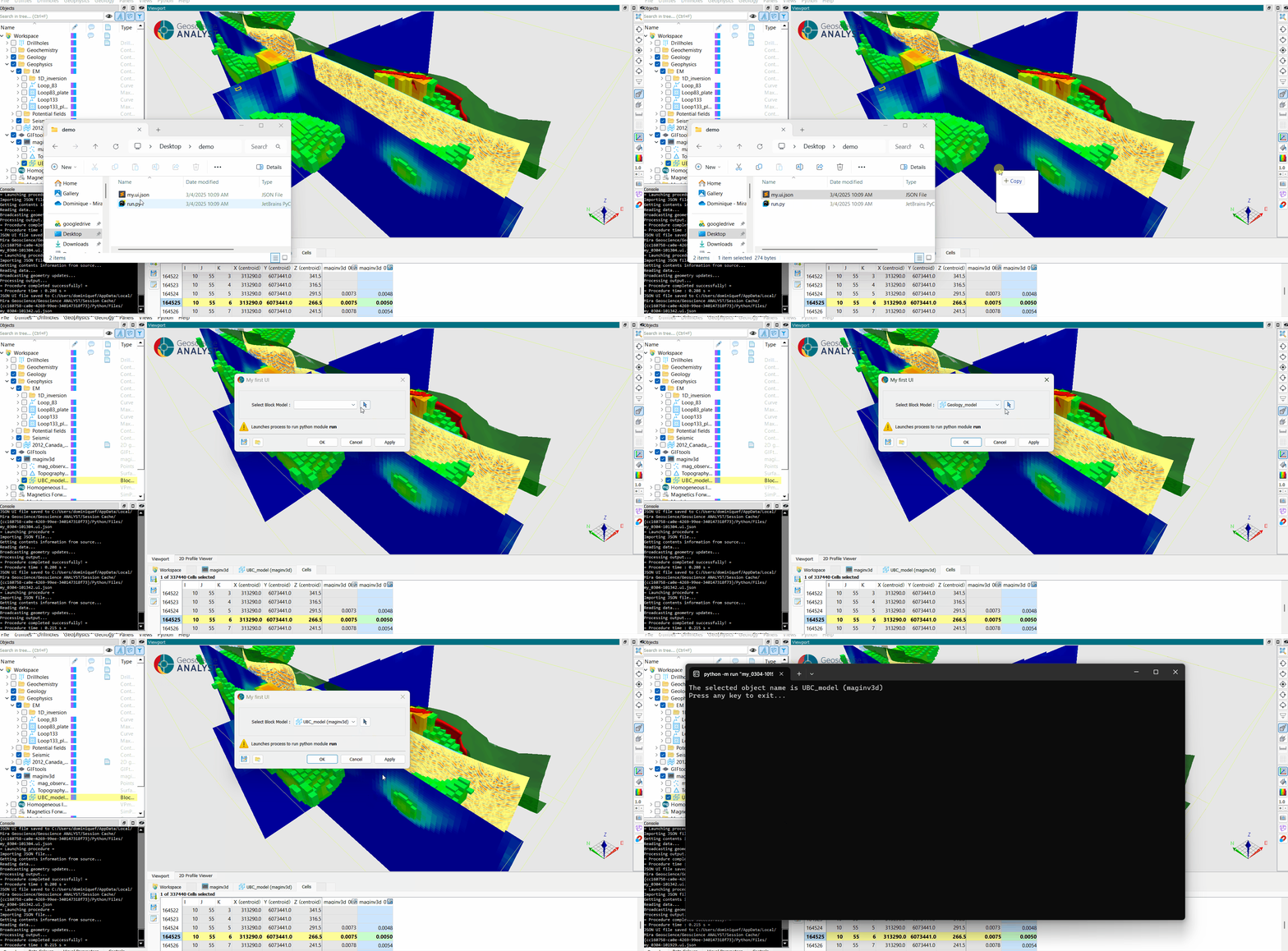
Add to Python Script Menu:
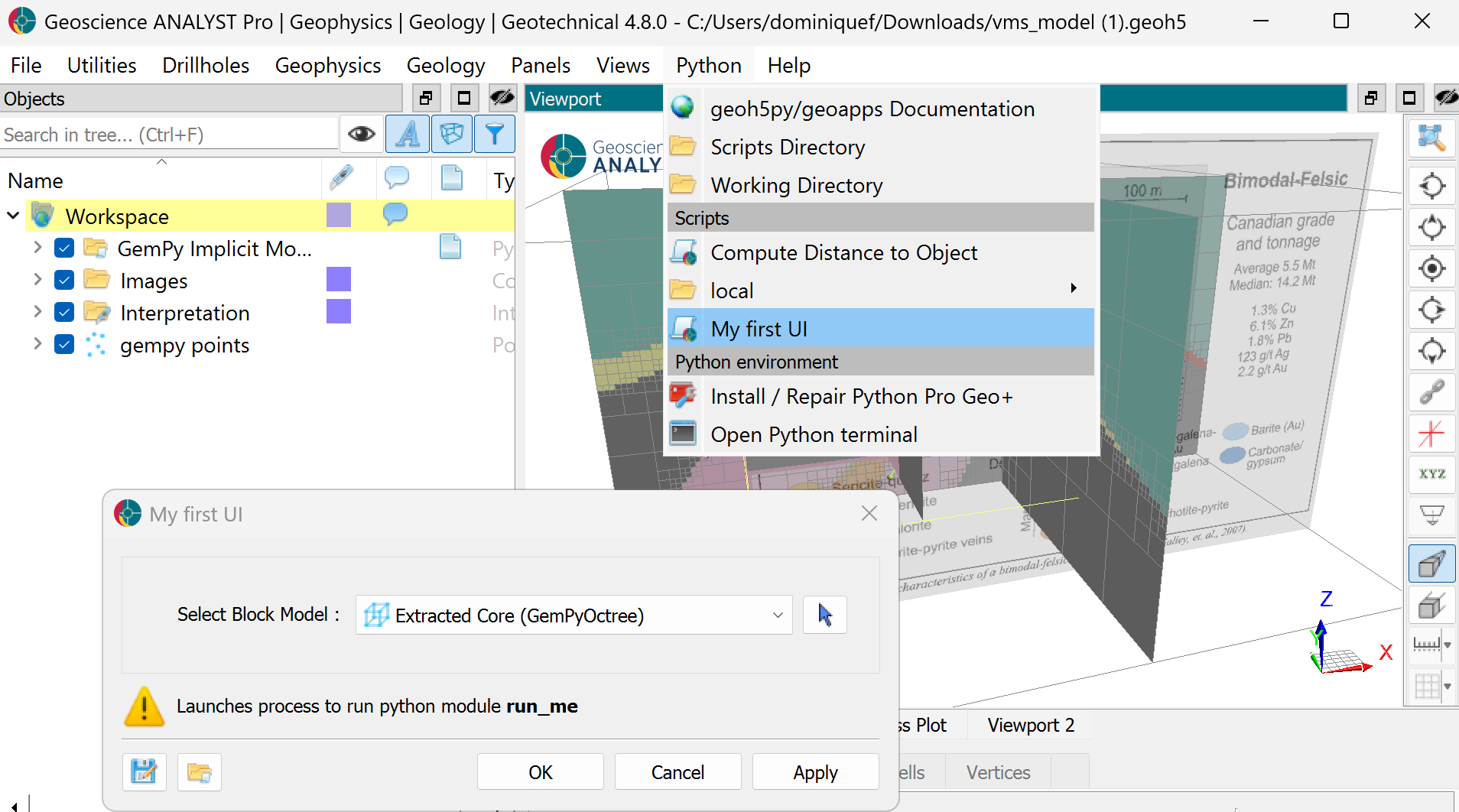
From the ANALYST menubar, open the Python menu and select Script Directory to launch the file explorer.
Copy the
ui.jsonfile into the displayed folder.Close the workspace or restart ANALYST Pro. The new application will appear under the Python script menu.